Follow along with the video below to see how to install our site as a web app on your home screen.
Note: This feature may not be available in some browsers.
The APS Catalog has been deprecated and removed from all Plesk Obsidian versions. Applications already installed from the APS Catalog will continue working. However, Plesk will no longer provide support for APS applications.
Please be aware: with the Plesk Obsidian 18.0.78 release, the support for the ngx_pagespeed.so module will be deprecated and removed from the sw-nginx package.
I am not sure if I completely understand what your objective it. If you want to view the HML code with the native text editor on MacOS, you'll find more information on how to use the text editor on the support site from Apple: Work with HTML documents in TextEdit on Mac
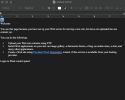
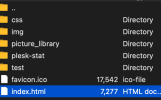
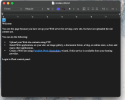
I'm trying to see the html file (highlighted) but when I click too view the file it shows the prompt "
Welcome
You see this page because you have set up your Web server for serving a new site, but have not uploaded the site content yet.
You can do the following:
Upload your Web site contents using FTP.
Install Web applications on your site: an image gallery, a discussion forum, a blog, an online store, a chat, and many other applications.
Create a Web site using Parallels Plesk Sitebuilder wizard, if this service is available from your hosting provider.
Login to Plesk control panel:"
I would like to see the Hmtl as I'm trying to move it to wordpress. Hopefully that helps. What would be my next steps so I can copy/edit the html file?
To even view the html file, I need to setup a server?