• Halloween is coming! To celebrate the occasion, we dusted off a couple of old skins, and even created a brand new one (Pixel).
    To get into the festive spirit, install the Skins extension.
  • The new Python extension is now available. It allows customers to deploy and manage WSGI-based Python applications on their websites directly from Plesk.
  • The Plesk Mobile apps for iOS and Android and the Plesk Mobile Center extension have been deprecated, and are no longer available for new installations. In Plesk Obsidian 18.0.84, the Plesk Mobile Center extension will be removed from servers during the upgrade, and the Plesk Mobile apps will lose their server management features.
  • The Social Login extension has been deprecated and will be removed in Plesk Obsidian 18.0.84. After that, it will no longer be possible to log in to Plesk with a Google, Facebook, GitHub account, or with a passkey. Plesk usernames and passwords, as well as logging in with a WebPros Account, are not affected.

Resolved Update sa password for MS SQL from plesk

Nitesh

New Pleskian
Hello, By mistake we have changed the password for "sa" user on MS SQL instance directly from SSMS. Once this has been done, we're unable to make any changes via the Plesk panel.

It says "Error: The test connection to the database server has failed because of an unacceptable password:

mssqlmng failed: Login failed for user 'sa'."

Please help me resolve this. Thanks in advance.
 
Hi Igor, I have tried the link using "Microsoft SQL Management Studio" approach. I feel that Plesk stores the "sa" password at soem instance. Since, the password was changed directly from RDP, Plesk has no idea regarding the new password.
 
If you have modified SA password inside MSSQL instance, you can just set this new password in Plesk, and everything should work properly.
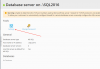
Go to Tools&Settings -> Database Servers -> your server -> Settings
upload_2019-7-3_13-45-40.png
And here please specify new password for SA, so Plesk will know how to connect to this instance.
 
Back
Top